


4.8/5
In the beginning of Personal Computer Usage, many of us used to carry
after introduction of Win98 and Win10/XP
But the Journey not yet completed...
data-ad-format="fluid"
data-ad-layout-key="-gw-3+1f-3d+2z"
data-ad-client="ca-pub-2517480801205470"
data-ad-slot="6448677529">
Yes many websites offering us to store our files online... which are safe from crashing computers and corrupted storage devices.
OneDrive is the Cloud Storage Service Offered by Microsoft, earlier known as SkyDrive.
Let us See how to use OneDrive...
Click here
Click here
data-ad-format="fluid"
data-ad-layout-key="-gw-3+1f-3d+2z"
data-ad-client="ca-pub-2517480801205470"
data-ad-slot="6448677529">
aslo we can check the available storage space... here it is 5.5GB
we can

full Online version of
Yes we can Create Word, Excel,Powerpoint and other MS Office files here even though we don't have MS Office installed in our pc
do this only after STEP 1 above
in our PC Ondrive comes along with windows 10, we need not to install separately, if you can't find onedrive installed in your pc,
Click here
then install it from onedrive website.
data-ad-format="fluid"
data-ad-layout-key="-gw-3+1f-3d+2z"
data-ad-client="ca-pub-2517480801205470"
data-ad-slot="6448677529">
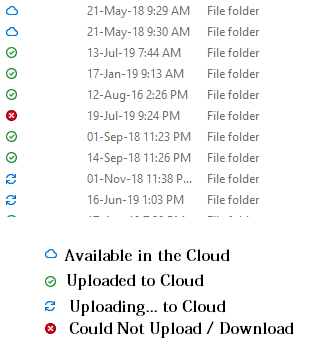
we can check the uploaded status of files


data-ad-format="fluid"
data-ad-layout-key="-gw-3+1f-3d+2z"
data-ad-client="ca-pub-2517480801205470"
data-ad-slot="6448677529">
Easy... Onedrive supports dual app feature in mobile...
Remember:
Always Logout from Onedrive for better security.
data-ad-client="ca-pub-2517480801205470"
data-ad-slot="9084301921"
data-ad-format="auto"
data-full-width-responsive="true">
OneDrive the beste place to keep your office or personal files online 24/7 for free
Quick Links
In the beginning of Personal Computer Usage, many of us used to carry
Floppies..
then CDs(Compact Discs)
after that DVDs,
after introduction of Win98 and Win10/XP
all of us started using
USB Drives (Pendrives or Thumb Drives and Exeternal Hard Disks) to Store our Files
and Transfer Our files from
one Computer to another Computer...
But the Journey not yet completed...
Fast Internet connections helped us to store our files online along with offline versions...
that saved us from carrying storage devices and broken floppies & scratched CDs/DVDs... and also Crashed Computers..
Solution is On line Storage = Cloud Storage
data-ad-format="fluid"
data-ad-layout-key="-gw-3+1f-3d+2z"
data-ad-client="ca-pub-2517480801205470"
data-ad-slot="6448677529">
Yes many websites offering us to store our files online... which are safe from crashing computers and corrupted storage devices.
these websites offering Cloud Storage with
Basic Free Storage limit to Premium Storage upto 5TB data
One of such Services is onedrive by Microsoft which is the simple and best cloud storage app for windows and apple and android users
OneDrive
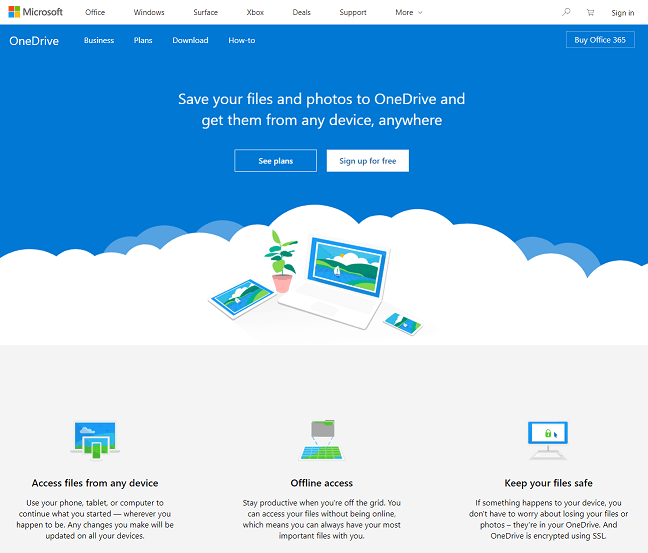
OneDrive is the Cloud Storage Service Offered by Microsoft, earlier known as SkyDrive.
It is the Service which allows us to store our files online by registering at their website or Mobile App.
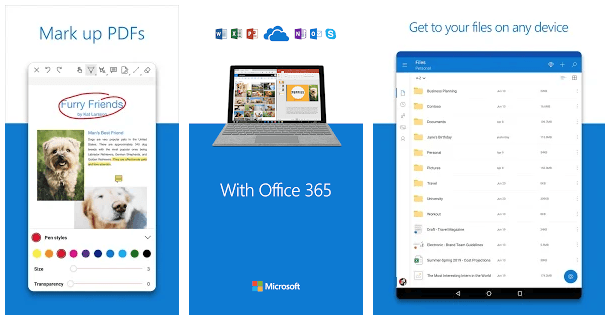
OneDrive can be installed on both the Computer and Mobile... and files will be automatically synced so that we can access our files from anywhere
Let us See how to use OneDrive...
in the browser
STEP 1 :
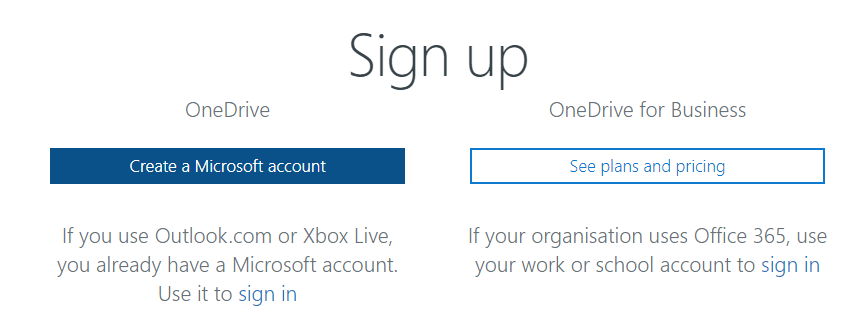
Click Below Link for registering / installing onedrive
installing by clicking below links gives you 0.5GB extra Free Storage
Click here
or
Click here
data-ad-format="fluid"
data-ad-layout-key="-gw-3+1f-3d+2z"
data-ad-client="ca-pub-2517480801205470"
data-ad-slot="6448677529">
STEP 2 :
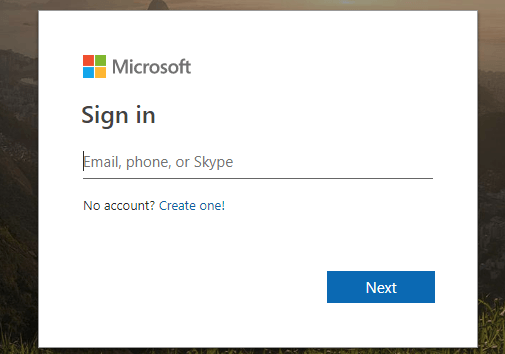
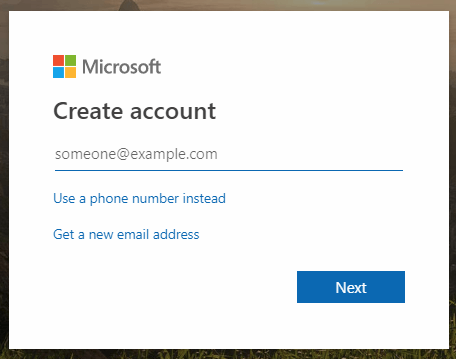
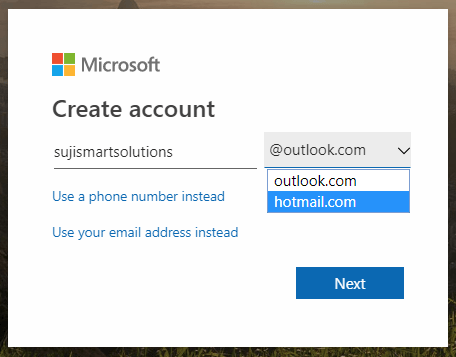
Create Onedrive account by clicking Create one!
now enter your email id and click Next, Enter Desired Password , then enter OTP received at your email id (if used your old email id)
You can create separate email address here if you want email id from Microsoft
STEP 3 :
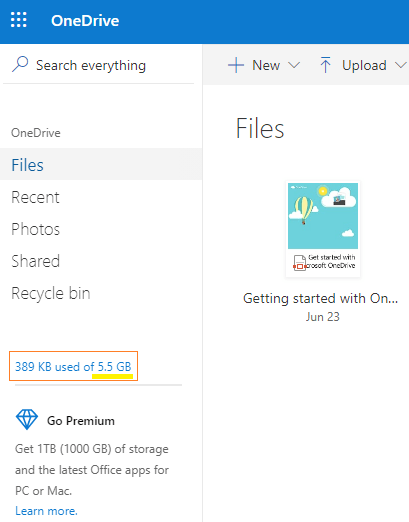
after login.. .we can see our account with some introduction
aslo we can check the available storage space... here it is 5.5GB
actual free storage space is 5GB and 0.5GB extra as we registered from STEP 1 links
data-ad-format="fluid"
data-ad-layout-key="-gw-3+1f-3d+2z"
data-ad-client="ca-pub-2517480801205470"
data-ad-slot="6448677529">
how to use now?
STEP 4 :
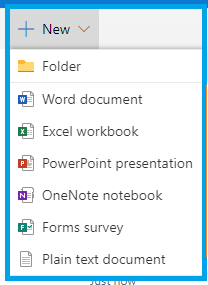
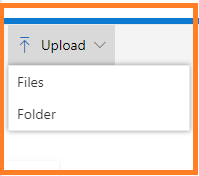
it's very simple... we will have 2 options
1. Creating New Folder or File there it self and save in the cloud
2. Uploading files from our PC or Mobile
we can
share , download , move , copy or rename the file/ folder here
also we can create an album from our photos
full Online version of
MS Office is available here
Yes we can Create Word, Excel,Powerpoint and other MS Office files here even though we don't have MS Office installed in our pc
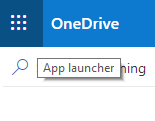
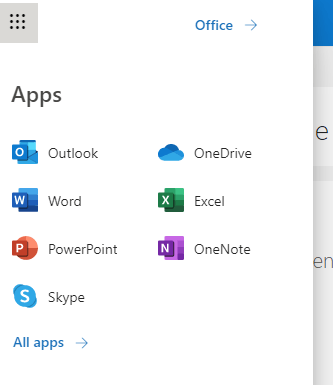
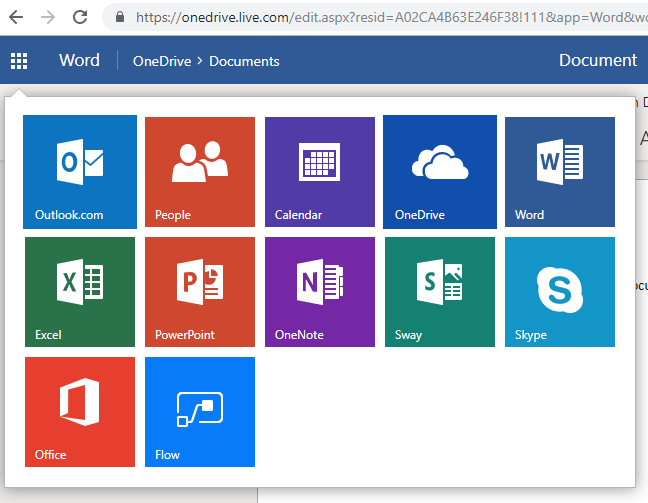
we can open Office applications by clicking this menu in the top left corner.
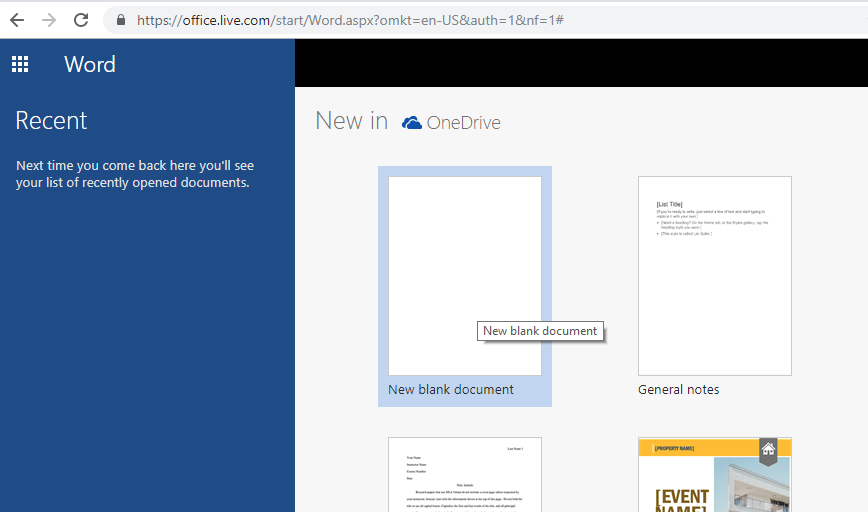
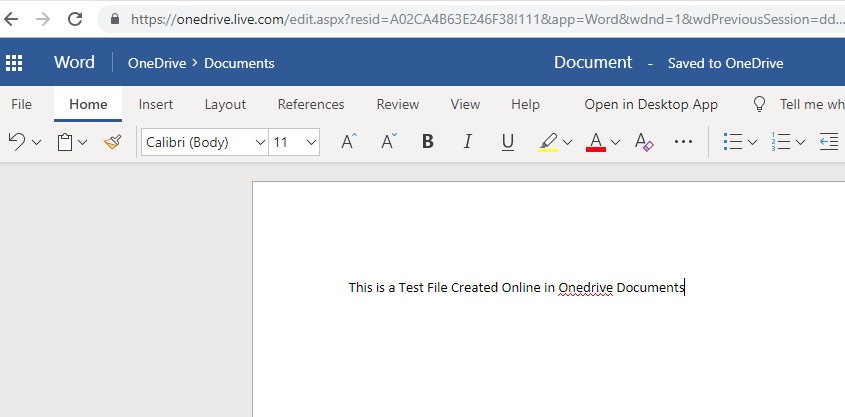
Create new document
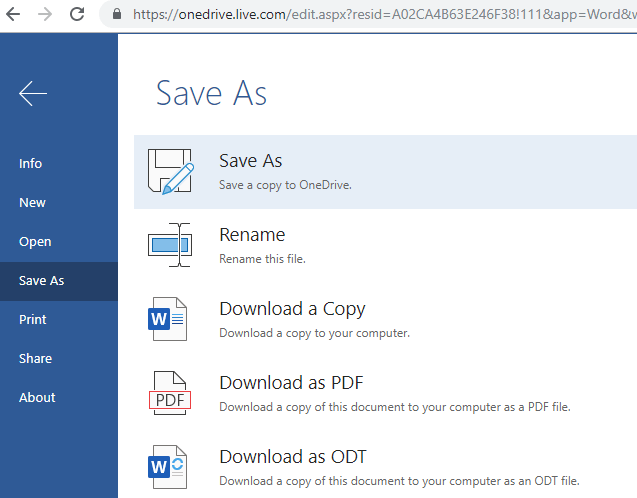
Save the document into different formats
We can access all other MS Office Apps from menu...
for desktop version
do this only after STEP 1 above
for additional 0.5GB Storage Data
After Registering as shown above in STEP1
in our PC Ondrive comes along with windows 10, we need not to install separately, if you can't find onedrive installed in your pc,
just search onedrive for pc
or click below link
Click here
then install it from onedrive website.
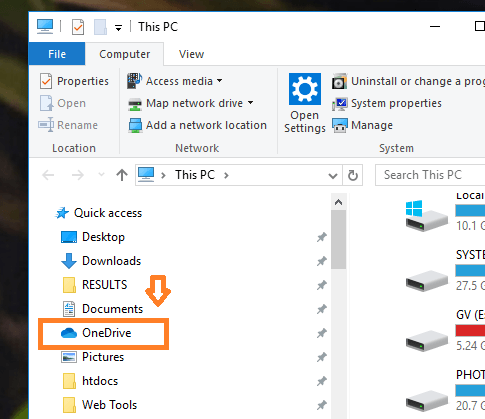
after installation onedrive will be added to our Navigation Pane in Windows
data-ad-format="fluid"
data-ad-layout-key="-gw-3+1f-3d+2z"
data-ad-client="ca-pub-2517480801205470"
data-ad-slot="6448677529">
how to use in desktop?
Easy... create or copy paste file in to onedrive folder and wait the files to uploaded to online ( we need active internet connection to upload the files in to the cloud)
we can check the uploaded status of files
depends on internet speed
for mobile version
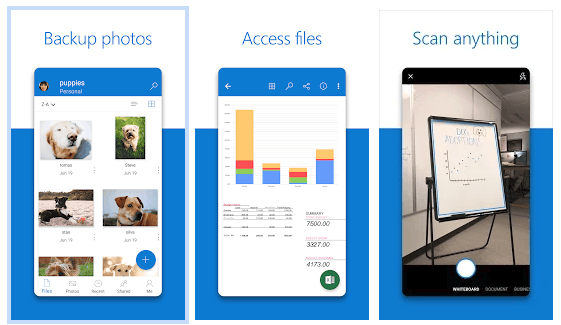
you can download onedrive from playstore... by clicking the link in STEP 1
after the installation... we need to register or sign in with the registration done in step1
We can Share directly from this app to many other apps
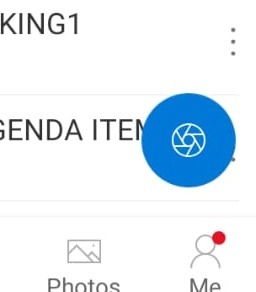
We can Even Take the photo from onedrive app itself and upload
Camera Button in onedrive app.. located in the right bottom of the main window
if you want to access both the personal and office files from your mobile?
data-ad-format="fluid"
data-ad-layout-key="-gw-3+1f-3d+2z"
data-ad-client="ca-pub-2517480801205470"
data-ad-slot="6448677529">
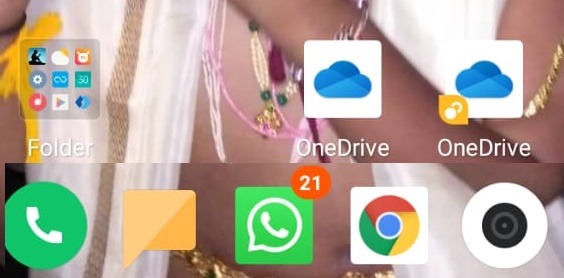
Easy... Onedrive supports dual app feature in mobile...
we can install the app twice and signin with different accounts and
access both the Personal and Office files from our mobile.
check these ... I have been using 2 accounts in my mobile
Remember:
Always Logout from Onedrive for better security.
Hope.. this post will help many of those who still carrying lot of files(hard copies) with them for instant information.
Thank you...
data-ad-client="ca-pub-2517480801205470"
data-ad-slot="9084301921"
data-ad-format="auto"
data-full-width-responsive="true">
OneDrive- Best place to Keep and Access your Office/Personal Files
Online 24/7 for Free
![OneDrive- Best place to Keep and Access your Office/Personal Files
Online 24/7 for Free]() Reviewed by sujismartsolutions.in
on
August 30, 2019
Rating:
Reviewed by sujismartsolutions.in
on
August 30, 2019
Rating:


No comments: